

Key Takeaways
Smartphone Storage vs. Cloud Storage
Smartphone storage refers to the physical memory built into your device — the space where apps, photos, and files are saved directly on the phone. Cloud storage means your files are saved on remote servers run by a company like Apple or Google, and accessed over the internet. Most phones today use both, often without making it obvious which files live where.
Local storage uses flash memory (similar to an SSD in a laptop), while cloud storage relies on distributed server infrastructure accessed via encrypted internet connections.
Two Places Your Files Can Live
Every file on your phone — a photo, a downloaded document, a voice memo — exists in one of two places: on the device itself (local storage) or on a remote server (cloud storage). Many people assume these are the same thing, or that one automatically handles the other. They do not.
Local storage is finite. Your phone came with a fixed amount — commonly 64 GB, 128 GB, or 256 GB — and everything you save draws from that pool. Cloud storage is space rented on someone else's servers. Both iCloud (Apple) and Google Photos (Google) offer limited free storage, with paid plans available if you need more. For a broader look at how cloud services work, see our beginner's guide to cloud storage.
Your Phone's Storage Capacity Is Fixed
Unlike a laptop where you might add an external hard drive, most modern smartphones — especially iPhones — do not allow you to expand local storage with a memory card. The gigabytes your phone shipped with are what you have. Cloud storage is the primary way to extend how much content you can access, though it requires an internet connection to retrieve files not saved locally.
How iCloud Works on an iPhone
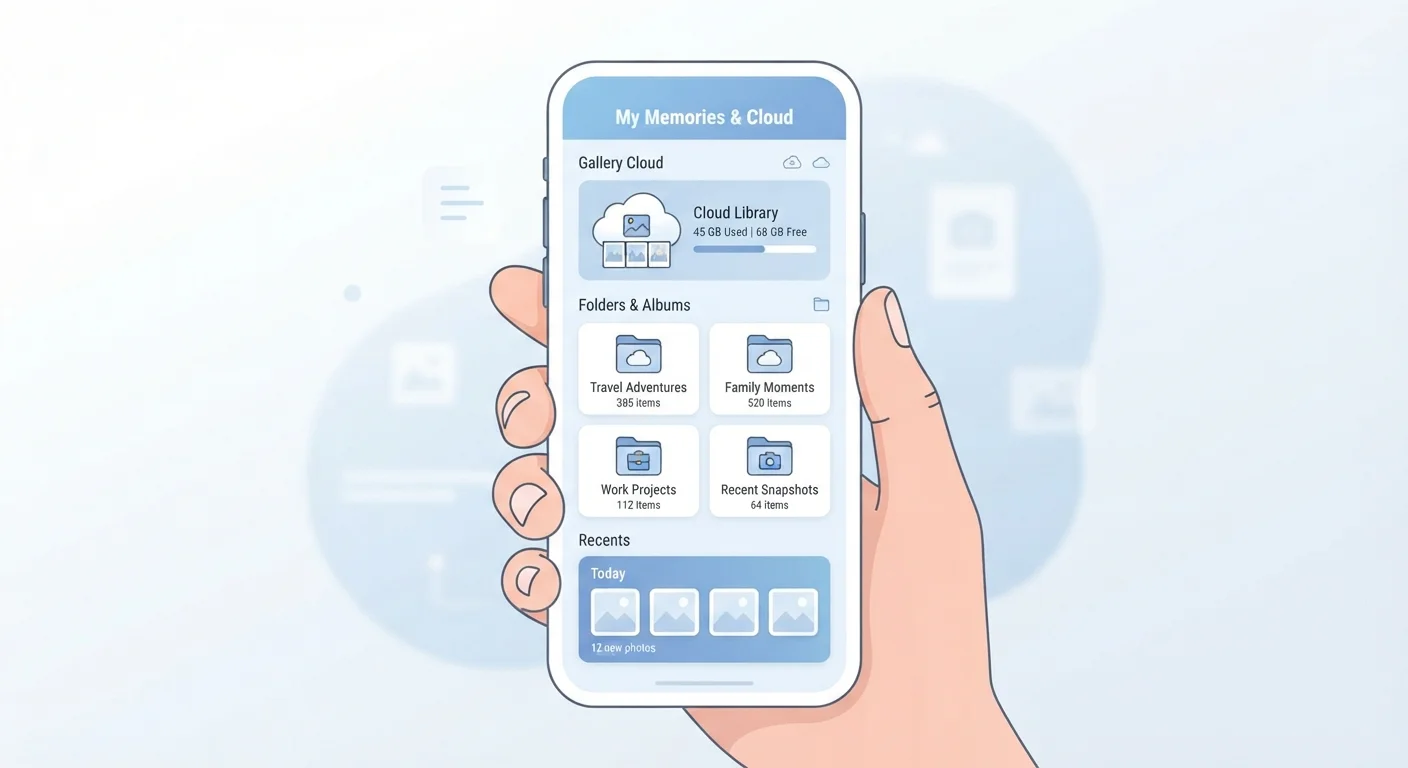
When you set up an iPhone and sign into your Apple ID, iCloud is often enabled by default for photos. The iCloud Photos feature uploads every photo and video you take to Apple's servers. To save space on the device itself, iPhones can store lower-resolution versions locally and retrieve the full-quality file from iCloud when you open it — a feature called "Optimize iPhone Storage."
This means a photo can appear in your camera roll while the full file lives entirely in the cloud. If you are offline or your iCloud storage is full, that photo may not load properly. It also means that if you cancel your iCloud subscription without downloading your photos first, you risk losing access to files that were never fully saved on your device. Free iCloud accounts include 5 GB, which fills quickly for anyone who takes photos regularly.
Check Your iCloud Storage Before It Runs Out
Rather than waiting for a notification that your backup has stopped, periodically check how much iCloud or Google storage you have used. Both services will pause automatic backups silently when you hit the limit — meaning your newest photos may not be protected without any warning appearing on screen. Setting a reminder to check once every few months is a simple habit that can prevent real data loss.
How Google Photos Works on Android (and iPhone)
Google Photos is available on both Android and iPhone, and it works similarly to iCloud Photos — uploading your images to Google's servers automatically, provided backup is switched on. One important difference: Google Photos does not replace your device's gallery. It is a separate app and service layered on top of your phone's existing photo storage.
Free Google accounts share 15 GB across Gmail, Google Drive, and Google Photos combined. Heavy email users may find their photo backup stalls because Gmail has consumed most of that space. Android phones from Google (Pixel) and Samsung each have their own default gallery apps, which can cause confusion about where photos are actually saved. If you want to understand more about the specs behind your phone's storage, our smartphone specs explainer breaks down the numbers.
When Storage Problems Get Confusing
The most common point of confusion: your phone says it has no storage left, but your photos still appear to upload to the cloud just fine. These are independent systems. A full phone means you cannot download new apps, take new photos, or receive software updates — but existing cloud-synced files are unaffected. Conversely, a full iCloud or Google account stops new backups, even if your phone has plenty of local space remaining.
Another common scenario: someone gets a new phone and assumes their photos will "just be there." If those photos were stored only locally on the old device and backup was never enabled, they will not transfer automatically. See our guide to setting up a new smartphone without losing anything for steps to take before switching devices.
15 GB
Free Google account storage (shared across services)
Google's free tier is split between Gmail, Google Drive, and Google Photos — heavy email use can limit photo backup capacity.
5 GB
Free iCloud storage per Apple ID
Apple provides 5 GB of free iCloud storage, which many users find fills quickly when iPhone backups and photos are both enabled.
30 days
Recovery window after deleting iCloud photos
Deleted photos move to a 'Recently Deleted' album in iCloud Photos and are permanently removed after approximately 30 days.
Practical Steps to Get Clarity on Your Own Files
You do not need to memorize every technical detail — you just need to know where to look. Here is how to get a clear picture of your own storage situation:
- Check device storage: On iPhone, go to Settings > General > iPhone Storage. On Android, check Settings > Storage.
- Check cloud storage: For iCloud, open Settings > > iCloud. For Google, open the Google Photos app and tap your profile photo to see storage used.
- Confirm backup is on: In iCloud settings, look for "iCloud Photos" toggle. In Google Photos, open Settings > Google Photos settings > Backup.
- Understand optimize vs. download: If your iPhone is set to optimize storage, your originals are in the cloud. To keep full copies on-device, switch to "Download and Keep Originals."
For related tips on managing what your apps store on your device, our guide on clearing your cache explains how temporary files accumulate and when removing them actually helps.