

Key Takeaways
Start here
What Cloud Storage Actually Is
Next
Where Your Files Physically Live
Then
Why People Use Cloud Storage
Important
What to Consider Before Trusting Your Files to the Cloud
Put it into practice
Getting Started: Practical First Steps
What Cloud Storage Actually Is
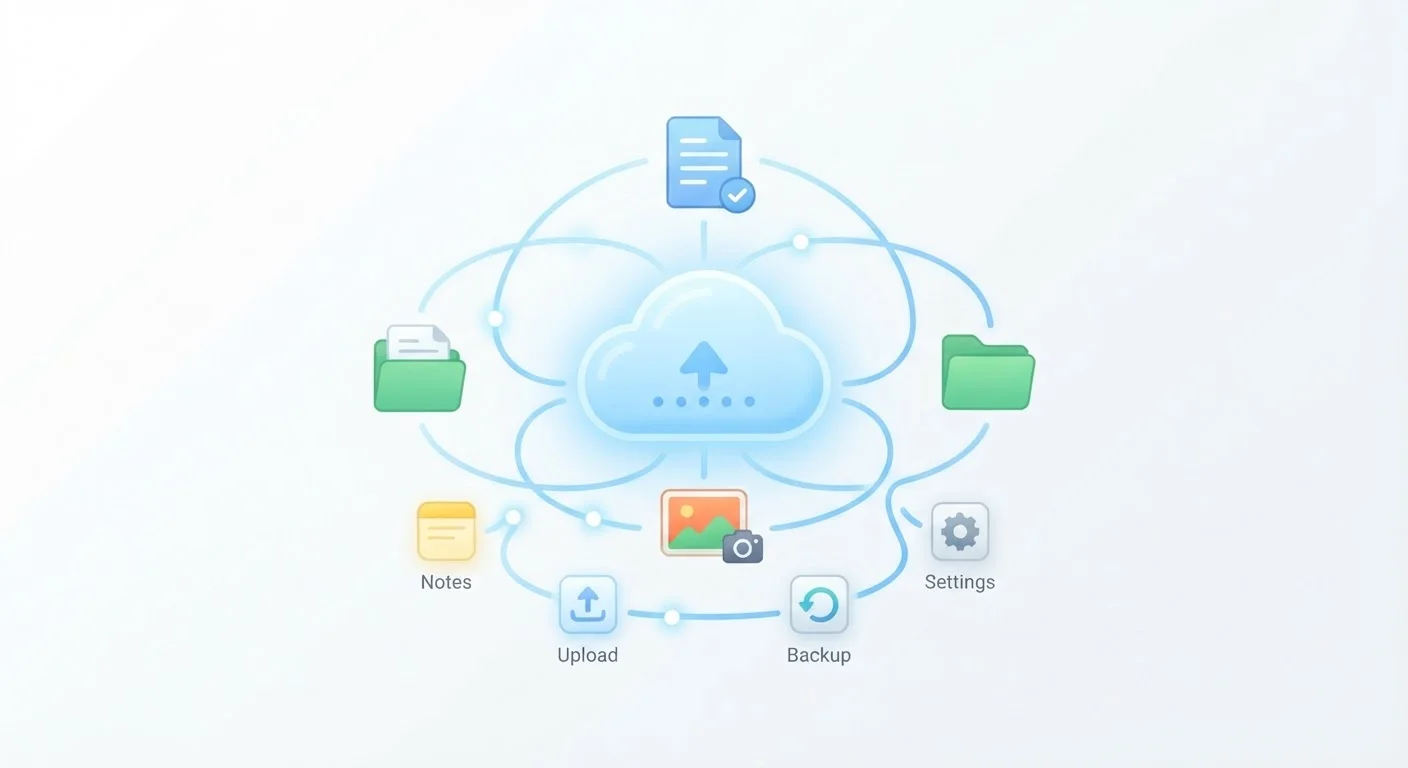
When you save a photo to your phone, it lives on a tiny chip inside the device — that's local storage. Cloud storage works differently: instead of keeping files only on your device, you're sending them over the internet to a computer owned by a company, where they're stored on your behalf. You can then retrieve those files from any device as long as you have internet access and your login credentials.
Think of it like a secure, off-site filing cabinet that you can open from home, work, or anywhere in between — without physically carrying anything. Services like those built into most smartphone operating systems, or standalone apps you download separately, handle the behind-the-scenes transfer automatically once you set them up.
Local storage
The physical memory built into your device — a phone, laptop, or tablet — where files are saved directly. If the device is lost or damaged, locally stored files can be lost too.
Cloud storage
A service that stores your files on remote servers connected via the internet, so you can access them from any device with your login credentials.
Syncing
The automatic process of keeping files consistent across your devices and the cloud — changes made in one place are reflected everywhere.
Data center
A large facility housing thousands of servers that store and manage data for cloud services. These buildings run continuously and are designed for security and reliability.
Two-factor authentication
A login security feature that requires a second verification step — like a code sent to your phone — in addition to your password, making unauthorized access much harder.
Encryption
A process that scrambles your data so it can only be read by someone with the correct key. Cloud services typically encrypt files during transfer and while stored on their servers.
Where Your Files Physically Live
The word "cloud" makes the technology sound weightless and abstract, but your files have a very real physical home. Cloud storage providers operate data centers — massive, warehouse-like buildings filled with thousands of servers (powerful computers that do nothing but store and serve data). These facilities have redundant power supplies, cooling systems, and security measures to keep your files safe and available around the clock.
One important detail: data centers can be located in a different country from you. This matters because the legal rules governing your data — including who can request access to it — are often tied to where the data physically sits. Reputable services publish information about their data center locations and applicable legal jurisdictions, so you can look this up if it matters to you.
Most services also store multiple copies of your files across different locations. If one server fails, your data can still be retrieved from another. This redundancy is one of the main reasons cloud storage is often more reliable than a single hard drive at home.
Why People Use Cloud Storage
Cloud storage solves several practical problems at once:
- Access from anywhere: Start a document on your laptop and continue it on your phone without emailing it to yourself.
- Free up device space: Offloading photos and files to the cloud can make a full phone or laptop usable again. For a deeper look at how this plays out on smartphones specifically, see how iCloud and Google Photos manage your files.
- Share files easily: Instead of emailing large attachments, you send a link to a file stored in the cloud.
- Protection against device loss: If your phone is stolen or your laptop dies, files already synced to the cloud are still safe.
Use Selective Sync to Save Device Space
Most cloud storage apps let you choose which folders are downloaded to each device — a feature often called selective sync or on-demand files. This means you can keep a large library in the cloud without it consuming space on your phone or laptop. Only the files you actually open get downloaded locally.
Cloud storage also pairs naturally with broader digital habits. If you're building a more thoughtful approach to your online presence, understanding digital privacy basics is a useful companion read.
What to Consider Before Trusting Your Files to the Cloud
Cloud storage is convenient, but it comes with trade-offs worth understanding before you rely on it heavily.
Syncing Is Not the Same as Backing Up
Many people assume that because their files are in the cloud, they're fully protected. But if you accidentally delete a file and your device syncs that deletion to the cloud, the file disappears from both places. Check whether your service offers version history or a recycle bin — and consider keeping a separate backup of anything you can't afford to lose.
- Account security: Your files are only as protected as your login. Use a strong, unique password and enable two-factor authentication — a second verification step that makes unauthorized access much harder.
- Privacy policies: Services vary in how they handle your data, including what they use it for and under what conditions they might share it with third parties or authorities. Reading the summary of a service's privacy policy (not the full legal document, but the plain-English highlights) takes only a few minutes.
- What "sync" actually means: If you delete a file from your device and it syncs to the cloud, it may be deleted from the cloud too. Understand whether your service offers a recycle bin or version history before you depend on it as your only copy.
- Costs over time: Free tiers fill up. Once you exceed the free allowance, you'll pay a recurring subscription. Factor this into your decision.
Getting Started: Practical First Steps
Ready to try cloud storage? Here's a sensible way to begin without overwhelming yourself.
- Identify what you actually need to store. Documents, photos, and small files are a natural starting point. Large video libraries consume storage quickly.
- Start with a free tier. Most major services offer free storage — enough to get a feel for the workflow before committing to a paid plan.
- Secure your account immediately. Set a strong, unique password and turn on two-factor authentication before uploading anything.
- Don't delete the only copy of something until you've confirmed it uploaded. Open the service on a second device and verify the file is there first.
- Consider keeping important files in two places. Cloud storage plus an occasional local backup — on an external drive, for example — gives you a safety net if either system fails.
If you're also building confidence across other areas of your digital life, our complete smartphone guide covers storage, apps, and connectivity in one place.
Digital Privacy From the Ground Up
A companion guide covering passwords, encryption, and data rights — essential context for anyone storing personal files online. Read the guide
Smartphone Storage, iCloud, and Google Photos Explained
Untangles the overlap between your phone's local storage and cloud photo libraries, so you know exactly where your files are at any moment.