

Key Takeaways
The Hardware Inside Your Phone
A smartphone is essentially a pocket-sized computer. At its core sits a system-on-a-chip (SoC) — a single component that bundles the processor (CPU), graphics engine (GPU), and often the modem for cellular signals. Think of the CPU as the brain making decisions, and the GPU handling anything visual, like scrolling or video playback.
Beyond the SoC, your phone contains:
- RAM (Random Access Memory): Short-term working memory that holds apps you currently have open. More RAM generally means smoother multitasking.
- Internal storage: Where your photos, apps, and files live permanently, similar to a hard drive on a laptop.
- Battery: A lithium-ion cell that charges and discharges in cycles. Each cycle slightly reduces its maximum capacity over time.
- Sensors: An accelerometer detects orientation, a gyroscope measures rotation, and a proximity sensor dims the screen when you hold the phone to your ear.
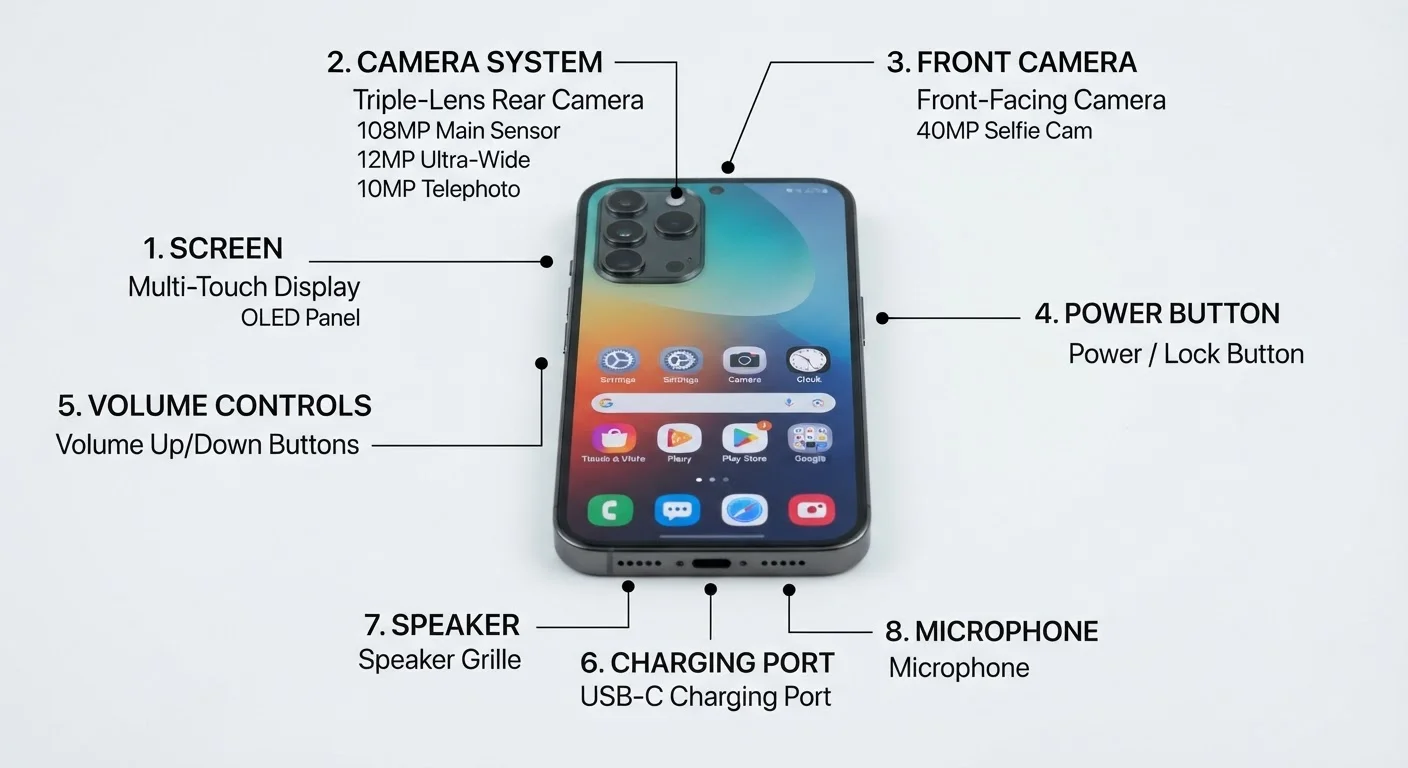
- Cameras: Modern phones use multiple lenses — wide, ultrawide, and telephoto — each captured by a dedicated image sensor.
6.8B
Smartphone users worldwide
Statista estimated approximately 6.8 billion smartphone users globally as of the mid-2020s.
~500
Full charge cycles before noticeable battery degradation
Apple and most battery researchers cite roughly 500 full cycles as the point where lithium-ion capacity noticeably declines.
3–5 years
Typical software support window for smartphones
Most major Android manufacturers now commit to three to five years of OS updates; Apple typically supports iPhones for five to six years.
Operating Systems: Android vs. iOS
An operating system (OS) is the foundational software that manages hardware and lets apps run. Every smartphone runs one. The two dominant options are Android (developed by Google, used by many device makers) and iOS (developed by Apple, exclusive to iPhones).
Key practical differences:
- Updates: Apple pushes iOS updates directly to supported iPhones for several years. Android updates depend on your device manufacturer and carrier, so timing and duration vary widely.
- App stores: iOS apps come exclusively from the App Store. Android uses Google Play by default but can allow installs from other sources — a flexibility that also requires more caution.
- Customization: Android generally allows more control over default apps and home screen layouts. iOS tends toward a more consistent, curated experience.
Before choosing a platform, check how long the manufacturer commits to OS and security updates. A phone with only two years of support remaining may cost less upfront but leave you exposed sooner.
Security vulnerabilities are regularly discovered, and unpatched operating systems are a primary vector for malware. Update longevity is a practical safety consideration, not just a feature preference.
Review app permissions right after installation, not months later when you've forgotten what you agreed to. Remove location or microphone access for any app that has no clear need for it.
Permissions granted during an initial excited install are rarely revisited, yet they determine how much of your data and hardware each app can access continuously in the background.
Neither system is universally superior — the right choice depends on which devices you already own, which apps matter most to you, and how much control versus simplicity you prefer.
Apps: What They Are and How They Work
An app (short for application) is software designed to perform a specific task — navigation, messaging, banking, or streaming. Apps are downloaded from an app store and stored in your phone's internal memory.
One concept worth understanding is the sandbox: each app runs in its own isolated environment. This means a poorly behaved app generally cannot read files belonging to another app. The OS acts as a gatekeeper.
Apps request permissions to access hardware or data — your camera, microphone, location, or contacts. You can usually review and revoke these at any time in your phone's Settings. Granting only the permissions an app genuinely needs is a simple habit that meaningfully limits your exposure.
For a broader look at how apps and the internet fit together, see our Internet & Apps hub.
Audit Your App Permissions Regularly
Go to Settings > Privacy (iOS) or Settings > Apps (Android) to see which apps have access to your location, camera, microphone, and contacts. Revoking unnecessary permissions takes seconds and meaningfully reduces your data exposure. Aim to do this review every few months.
Connectivity: Wi-Fi, Cellular, and Bluetooth
Your phone connects to the world through three primary wireless technologies:
- Wi-Fi
- Connects to a local router, typically in your home or a public space. Data travels over your internet service provider's network. Wi-Fi is generally faster and doesn't consume your cellular data allowance.
- Cellular (4G/5G)
- Uses radio towers operated by your carrier. 4G LTE (Long-Term Evolution) is widely available and handles streaming and browsing well. 5G is the newer standard offering faster speeds in areas with compatible infrastructure.
- Bluetooth
- A short-range radio standard (typically effective up to about 30 feet) used to connect accessories like headphones, speakers, and smartwatches.
Public Wi-Fi Networks Vary in Safety
Not all public Wi-Fi is equally risky — many airports and hotels now use encrypted networks. However, open networks with no password offer no encryption, meaning data can potentially be intercepted. When in doubt, use your cellular connection for anything sensitive, or connect through a reputable VPN service.
A fourth technology, NFC (Near Field Communication), enables contactless payments and quick device pairing over very short distances — usually a few centimeters.
Security and Privacy Basics
Smartphone security rests on a few foundational habits. Getting these right matters more than any single app or setting.
- Screen lock: Use a PIN, password, fingerprint, or face unlock. A six-digit PIN is significantly harder to guess than a four-digit one.
- Software updates: Updates frequently patch security vulnerabilities. Delaying them leaves known weaknesses open. Enable automatic updates where possible.
- Two-factor authentication (2FA): Adds a second verification step — a code texted to you or generated by an app — before anyone can log into your accounts.
- Public Wi-Fi awareness: Unencrypted public networks can expose data in transit. Avoid logging into sensitive accounts (banking, email) on open Wi-Fi unless using a VPN (Virtual Private Network), which encrypts your connection.
Privacy goes hand-in-hand with security. For a deeper dive into passwords, encryption, and data rights, see our complete digital privacy starter guide.
Software Updates Are Security Updates
Many people delay updates because they seem inconvenient, but skipping them leaves your phone exposed to publicly known vulnerabilities. Security patches are often bundled into routine version updates. Enable automatic updates or set a reminder to install them within a few days of release.
Caring for Your Phone Long-Term
A few consistent habits extend both the physical life and performance of your phone:
- Battery health: Lithium-ion batteries prefer staying between roughly 20% and 80% charge rather than frequent full discharges to zero. Most modern phones have a battery health display in Settings — check it periodically.
- Storage management: A nearly full storage drive can slow performance. Regularly delete unused apps and back up photos to cloud storage or a computer to free space.
- Physical protection: A case absorbs drop impacts, and a screen protector reduces surface scratching. Both are inexpensive compared to repair costs.
- Restart occasionally: Restarting clears temporary files and applies pending updates fully. A weekly restart is a simple maintenance step many people skip.
Smartphones come with real trade-offs beyond the convenience they offer. For a balanced perspective on ownership costs, repairability, and attention impacts, read the overlooked downsides of owning a smartphone.
Avoid Third-Party Chargers Without Certification
Uncertified charging cables and adapters can deliver inconsistent voltage, which degrades battery health faster and, in rare cases, poses a safety risk. Look for chargers certified to your region's safety standards (such as UL in the US). This applies to wireless charging pads as well.