

Key Takeaways
Summary
18 items · 20–45 minutes
Why These Settings Get Ignored
Most people set up a new phone once and never revisit the security menu. That's understandable — the settings app isn't exactly inviting, and phone makers don't highlight these options the way they do cameras or battery life. But your phone holds your email, banking apps, photos, passwords, and location history. Treating its security as a one-time setup is a bit like locking your front door when you move in and never checking whether the lock still works.
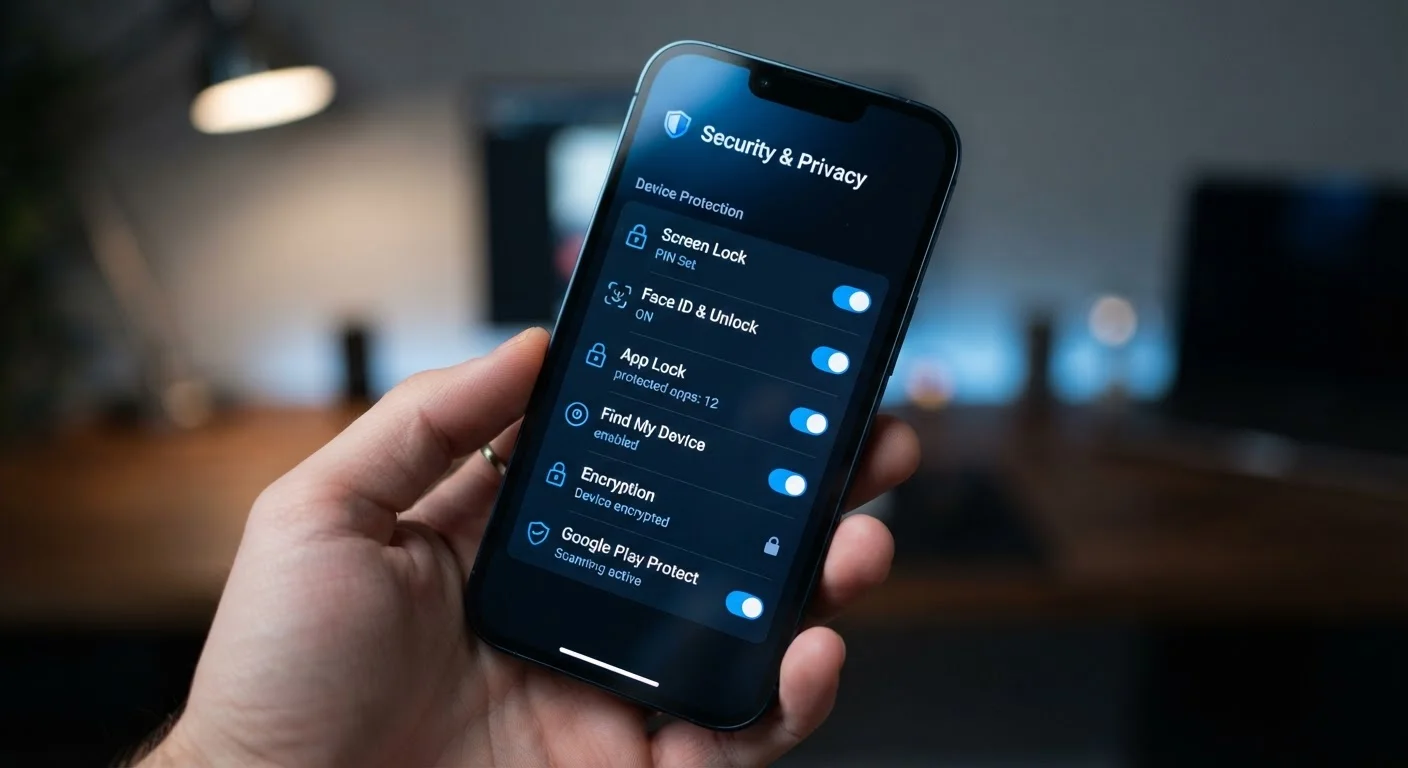
This checklist is a practical audit, not a technical deep-dive. Work through it at your own pace. You don't need to change everything — some settings will already be right for you — but you should know what each one does before deciding. For a broader look at what's happening under the hood of your device, our full smartphone explainer is a useful companion.
Your Phone's Settings App
The built-in settings menu is where every item in this checklist lives — no additional software required.
Your Device Account (Apple ID or Google Account)
Access your account portal online to review connected devices, active sessions, and two-factor authentication status.
A Password Manager
Helps you create and store strong, unique passwords for every app and account on your phone.
The Security Settings Checklist
Work through each group below. Settings menus vary by manufacturer and operating system version, but the categories are consistent across Android and iPhone. Search your settings app by keyword if you can't find a specific option.
Lock Screen & Biometrics
App Permissions
Account & Device Security
Backup & Data Protection
Network & Connectivity
Changing Some Settings Can Lock You Out
Before enabling options like 'Erase after failed attempts' or changing your Apple ID or Google account password, make sure you know your current credentials and have a recent backup. If you forget a passcode after enabling stricter security, recovery options are limited and can result in data loss. When in doubt, create a backup first.
If you share your phone with a child or want to understand what platforms are doing with your data, see our guide to parental controls and social media privacy settings by platform.
What to Do After the Audit
Once you've worked through the checklist, a few follow-up steps are worth taking. If you discovered that your device account — your Apple ID or Google account — lacks two-factor authentication, address that first. Two-factor authentication is the single most effective barrier against unauthorized account access, even if someone knows your password.
Next, consider your passwords. Many people reuse the same one across multiple services. Common password habits that leave accounts vulnerable explains why this is risky and how to shift away from it without a major overhaul.
Finally, your browser on mobile deserves attention too. Browser privacy settings worth switching on covers adjustments that reduce tracking across your everyday web use. Revisit this checklist every six to twelve months — OS updates sometimes reset or introduce new settings that are worth reviewing again.
Don't Skip the Account-Level Security
The settings on your phone itself matter, but the account tied to it — your Apple ID or Google account — is often the more valuable target. Someone who gains access to that account can remotely access your backups, contacts, and purchase history even without holding your physical phone. Treat that account's password and two-factor settings as the foundation everything else builds on.
This article provides general technology information for educational purposes only. Security features and menu paths vary by device, operating system version, and manufacturer. Verify settings on your specific device.