

Key Takeaways
Start here
What Is Two-Factor Authentication?
Understand your options
The Three Types of Authentication Factors
Take action
How to Turn On 2FA for Your Accounts
Compare methods
Common 2FA Methods Compared
Know the limits
What 2FA Cannot Protect Against
What Is Two-Factor Authentication?
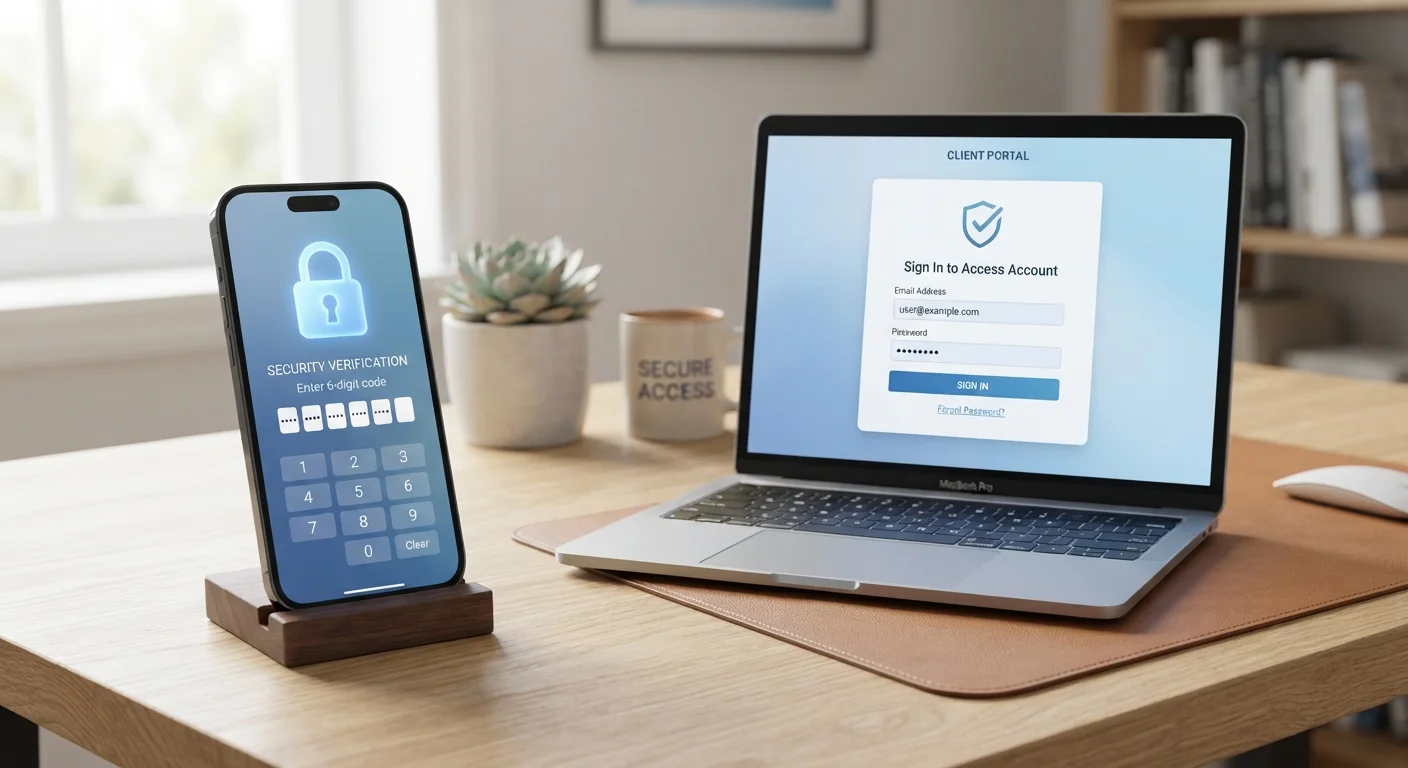
Think of your online account as a building. Your password is the front door key — useful, but a thief who copies it can walk straight in. Two-factor authentication (2FA) adds a second lock that requires a completely different kind of credential to open.
In practice, 2FA means that after entering your password, you must also prove your identity a second way — typically a short code sent to your phone or generated by an app. Even if someone steals or guesses your password, they still can't access your account without that second factor.
This matters enormously because passwords alone are increasingly unreliable. Data breaches expose billions of credentials every year, and many people reuse the same passwords across sites (a habit worth breaking — see our article on common password mistakes). 2FA is one of the most impactful steps an ordinary user can take to stay safer online.
Two-factor authentication (2FA)
A login process that requires you to verify your identity in two separate ways — typically your password plus a temporary code — before granting access to an account.
One-time code
A short numeric code that is valid for only a brief window of time, usually 30 to 60 seconds, and cannot be reused.
Authenticator app
A smartphone app that generates time-sensitive login codes locally on your device, without sending them over a phone network.
SIM swapping
A type of fraud where an attacker convinces a mobile carrier to transfer a victim's phone number to a new SIM card, allowing them to receive that person's text messages.
Phishing
A scam where attackers create fake websites or messages designed to trick you into entering your login credentials or personal information.
Security key
A small physical device — often plugged into a USB port or tapped over NFC — that proves your identity without sending any code that could be intercepted.
The Three Types of Authentication Factors
Security experts categorize authentication factors into three groups. Most 2FA systems combine the first with one of the other two:
- Something you know — a password, PIN, or security question answer.
- Something you have — a phone that receives a text code, an authenticator app, or a physical security key.
- Something you are — biometrics like a fingerprint or face scan, used by many smartphones and some apps.
Standard 2FA typically pairs a password (something you know) with a time-sensitive code on your phone (something you have). This combination means an attacker would need to compromise two completely separate things at the same time — a much harder task.
Prioritize authenticator apps over SMS
When a service offers a choice between a text message code and an authenticator app, choose the app. Codes generated on your device never travel over the phone network, which removes a key interception risk. Popular authenticator apps are available free from major app stores — your device's security settings may even recommend one.
How to Turn On 2FA for Your Accounts
Enabling 2FA is usually a five-minute process found in an account's security settings. Here's a general approach that applies to most platforms:
- Sign in to the account you want to protect.
- Go to Settings (sometimes labeled Account or Privacy).
- Look for a section called Security, Sign-in, or Two-Step Verification.
- Choose your preferred second factor — app-based codes are often the strongest option.
- Follow the on-screen setup steps and save any backup codes the service provides.
Start with your email and financial accounts — these are the highest-value targets. From there, work through social media, cloud storage, and any other accounts that hold personal information. For a broader security review, our online privacy audit checklist can help you identify gaps you may have missed.
Save your backup codes before you need them
When you enable 2FA, most services display a set of single-use backup codes. These are your emergency access if you lose your phone or uninstall your authenticator app. Write them down or save them in a secure, offline location — not a screenshot on your phone. Losing both your second factor and your backup codes can mean permanent lockout from an account.
Common 2FA Methods Compared
Not all second factors offer the same level of protection. Here's how the most common options stack up:
| Method | How It Works | Relative Strength |
|---|---|---|
| SMS text code | A one-time code is texted to your phone number | Good — better than no 2FA, but vulnerable to SIM-swapping |
| Authenticator app | An app on your device generates a fresh code every 30 seconds | Stronger — codes never travel over the phone network |
| Physical security key | A small USB or NFC device you plug in or tap | Strongest — nearly impossible to phish remotely |
| Biometric prompt | Fingerprint or face ID on your device confirms your identity | Strong — tied to your physical device and body |
If you're managing many accounts and passwords alongside 2FA, our guide on managing accounts securely without memorizing passwords explains how password managers and passkeys fit into your security setup.
What 2FA Cannot Protect Against
2FA is a powerful tool, but understanding its limits helps you use it wisely. It does not fully protect you from:
- Real-time phishing — fake login pages that capture both your password and 2FA code instantly and replay them to the real site.
- Malware on your device — if your phone or computer is compromised, an attacker may be able to intercept codes as you enter them.
- Social engineering — being tricked into reading your code aloud to someone posing as a company's support team.
These scenarios are less common than simple password theft, but they're worth knowing about. Physical security keys are currently the best defense against phishing because the key cryptographically verifies the website's identity before responding. For a more complete picture of digital safety habits, explore our complete digital privacy starter guide.