

Key Takeaways
Why Your Browser Settings Matter More Than You Think
Browsers are built to be convenient, which often means prioritizing features over privacy. Most ship with settings that allow extensive data collection by default — ad trackers, behavior profiling, and permission grants you may not remember giving. Adjusting a handful of settings can meaningfully reduce what gets collected without making browsing noticeably harder.
It's also worth understanding what these settings can't do. Incognito or private mode, for example, doesn't stop tracking by websites or your internet provider — it only clears local history. If that surprises you, our article on what incognito mode actually does explains the real limitations clearly.
The steps below apply to the four most widely used desktop browsers. Menu names may vary slightly between browser versions, but the settings themselves exist in all of them.
What you will need
Step-by-Step: Settings to Change Today
Work through these changes in order — each one addresses a different tracking mechanism. You don't need to apply every step at once; even completing the first two will reduce the most common forms of cross-site tracking significantly.
Block Third-Party Cookies
Third-party cookies are small files placed on your device by websites other than the one you're visiting — often ad networks tracking you across the web. Blocking them is one of the highest-impact privacy moves you can make.
- Chrome: Settings → Privacy and security → Third-party cookies → select Block third-party cookies
- Firefox: Settings → Privacy & Security → Enhanced Tracking Protection → select Strict
- Safari: Enabled by default; verify under Settings → Safari → Privacy & Security → Prevent cross-site tracking is checked
- Edge: Settings → Privacy, search, and services → Tracking prevention → select Strict
Enable Do Not Track (with Realistic Expectations)
Do Not Track (DNT) sends a signal to websites asking them not to track your activity. Compliance is voluntary, so many sites ignore it — but enabling it costs nothing and may be honored by privacy-respecting publishers.
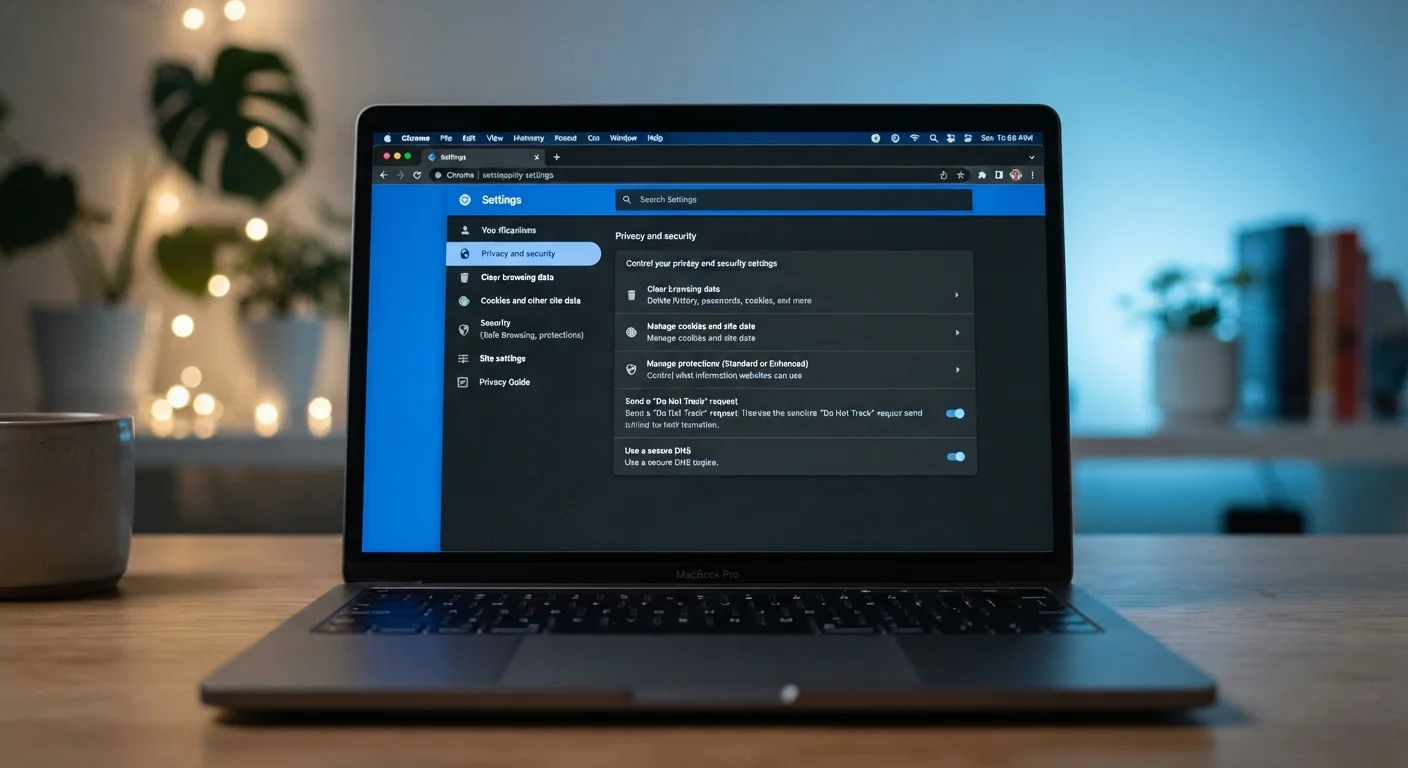
- Chrome: Settings → Privacy and security → scroll to Send a "Do Not Track" request → toggle on
- Firefox: Settings → Privacy & Security → Send websites a "Do Not Track" signal → select Always
- Edge: Settings → Privacy, search, and services → toggle on Send "Do Not Track" requests
Turn On DNS-over-HTTPS
Every time you type a web address, your browser asks a DNS (Domain Name System) server to look up where that site lives — like calling directory assistance. Without encryption, your internet provider can see every address you look up. DNS-over-HTTPS (DoH) encrypts those lookups.
- Chrome: Settings → Privacy and security → Security → scroll to Use secure DNS → toggle on, choose With your current service provider or select a provider like Cloudflare or Google
- Firefox: Settings → Privacy & Security → scroll to DNS over HTTPS → select Increased Protection or Max Protection
- Edge: Settings → Privacy, search, and services → Security → toggle on Use secure DNS
Review Site Permissions
Browsers accumulate permissions over time — websites you visited once may still have standing access to your location, microphone, camera, or notifications. Auditing these takes only a few minutes.
- Chrome / Edge: Settings → Privacy and security → Site settings → review Location, Camera, Microphone, and Notifications
- Firefox: Settings → Privacy & Security → scroll to Permissions → click Settings next to each category
- Safari: Settings → Websites → review each permission category in the sidebar
Revoke access for any site you don't actively use or don't recognize.
Disable Browser Sync for Sensitive Data (Optional)
Browser sync is convenient — it keeps bookmarks, passwords, and history consistent across your devices. But syncing stores that data on the browser maker's servers. If that concerns you, you can selectively turn off sync for certain data types rather than disabling it entirely.
- Chrome: Settings → You and Google → Sync and Google services → Manage what you sync → switch to Customize sync and uncheck History or Passwords if preferred
- Firefox: Settings → Sync → scroll to Choose what to sync → uncheck items
- Edge: Settings → Profiles → Sync → toggle off individual categories
No Setting Makes You Completely Anonymous
Even with every setting in this guide enabled, your browser can still be fingerprinted — identified by the combination of your device details, screen resolution, installed fonts, and more. These settings reduce passive data collection significantly, but they are one layer of protection, not a complete shield. For a fuller picture, see our overview of common privacy myths.
Once you've finished here, consider pairing these browser changes with a broader privacy review. Our personal online privacy audit checklist covers accounts, app permissions, and habits that extend well beyond the browser. And if you use a smartphone, phone security settings most people overlook is a natural next step.
What These Settings Won't Cover
Browser privacy settings address what happens inside your browser — they don't reach the data that companies have already collected, nor the profiles assembled by data brokers who compile records from many sources. To understand that layer of the picture, see our guide on what data brokers know and how to limit it.
Social media platforms also operate largely outside browser controls. The permissions and privacy settings within those apps and sites require their own review — our platform-by-platform social media privacy overview walks through the key controls on the most widely used networks.
Think of browser privacy settings as one solid layer in a broader approach. They reduce passive, background tracking effectively — and they're free, fast, and reversible if something doesn't work for you.